

Submission Guidelines for Creating Your Digital Video Avatar
To build a high-grade, realistic digital twin that looks and moves naturally, we require a high-quality source photograph.
Please follow the technical and styling instructions below during your photo shoot. Adhering to these guidelines ensures optimal facial mapping, accurate hand tracking, and a seamless final video output.
Image
Framing & Composition
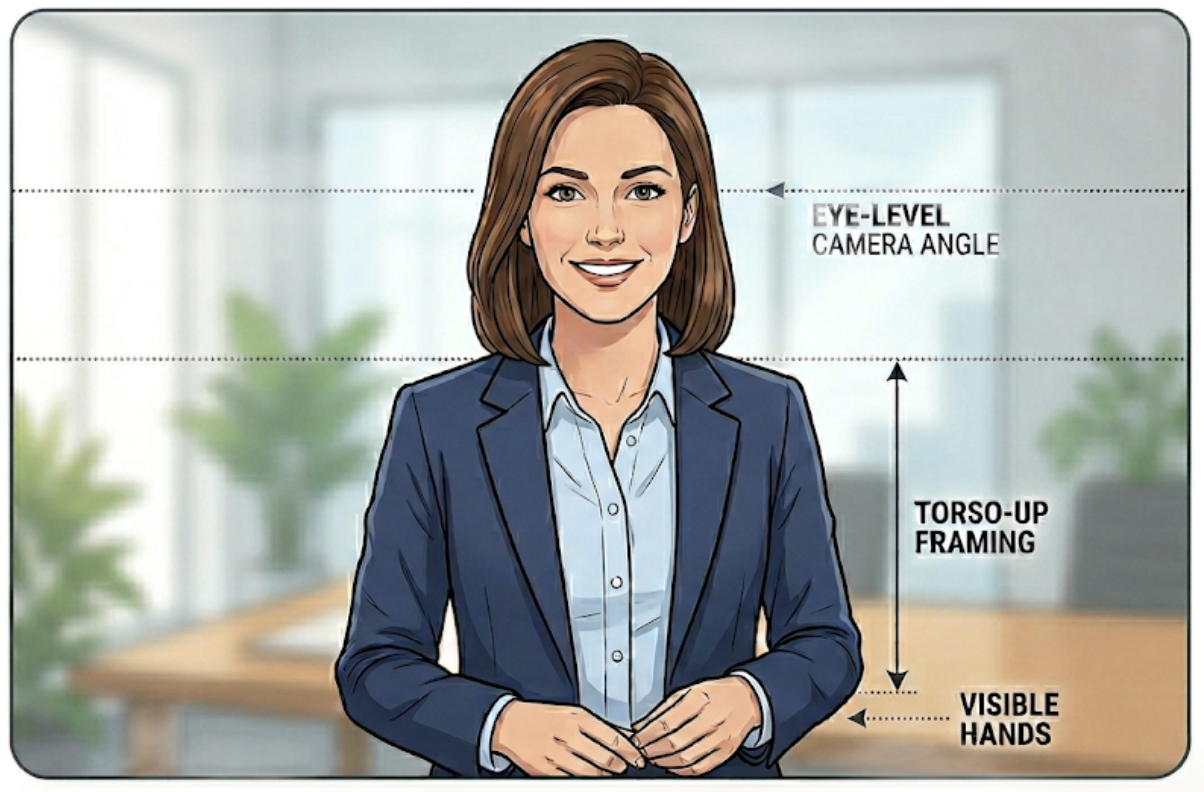
- Torso-Up Framing: Frame the shot from the waist/mid-torso up, exactly as shown in the reference image. Avoid full-body with too much distance from the camera. This reduces facial detail and results in a lower quality avatar.
- Hands: Keep both hands low in a natural way. We will ensure versions that ex- and include hands for different scenes.
- Eye-Level Angle: Position the camera perfectly at eye level. Avoid any inclination. Do not shoot from below, above, or from the side.
- Looking straight at the camera: A direct gaze gives the avatar the most natural eye contact when speaking. Slight angles can cause drift in the generated output.
- Landscape Orientation: Ensure the photo is taken in landscape format to allow for proper framing and digital adjustments.
Appearance & Styling
- Hair Grooming: Ensure hair is neatly combed and styled. Double-check for any stray hairs or flyaways sticking out, as these can create artifacts during the digital cloning process.
- Wardrobe Selection: Wear professional or comfortable clothing that you are happy to see your digital twin wear repeatedly.
- Pattern Restrictions: If possible, avoid clothes with stripes, checkers, or intricate geometric patterns, as these can cause visual distortions (moiré effect) in the final video. Stick to solid colors.
- Glasses: It is OK to wear glasses for your avatar, but make sure they do not reflect light as this will also be visible in the final avatar.
Background & Environment
- Natural Background: If you want a specific real-world background, it is best to shoot directly in that environment (ensure it is captured in landscape).
- Synthetic/Digital Background: If you plan to swap the background digitally later:
- Shoot the person against a solid, clean white background.
- Opt for a lighter background setup overall, as it yields significantly better results than darker backgrounds during the cloning process.
- Image Quality: The raw photo must preferably be in ultra-high resolution to ensure a high-grade, qualitative digital twin. At a minimum, we can work with a 1080p resolution in 16:9 (landscape /preferred) or 9:16 (vertical) aspect ratio.
Voice
How to Record
- Duration: Record 4 to 5 minutes of audio.
- Style: Do not read from a script. Speak naturally, just as you would in a normal conversation or presentation.
- Language: Speak in the exact language you want your final avatar to use.
Environment & Setup
- Deaden the Room: Choose a quiet room with minimal echo. Small spaces with lots of fabrics (like a walk-in closet or a room with heavy curtains and carpets) work best to absorb bounce-back sound.
- Microphone Distance: Keep your phone a consistent distance from your mouth (about two fists away, or 20cm).
- Speak at an Angle: To prevent harsh breathing sounds or "popping" noises from hitting the microphone, speak slightly past the phone rather than directly into it.
Performance & Consistency
- Be Consistent: Choose a tone and stick to it. If you want a high-energy avatar, keep your voice animated throughout. If you want a calm avatar, keep it subdued. Mixing styles will result in an unstable clone.
- Mind the Habits: The AI will clone everything—including your pauses, breathing habits, and filler words (like "um" and "ah"). Speak clearly and confidently.
Recording & Submitting
- Do Not Compress: Never send the audio file via WhatsApp, WeChat, or standard text message, as these platforms heavily compress the file and ruin the quality.
- How to Send: Export the raw audio file directly from your phone (as a .WAV or high-quality audio file) and send it via email or a file-sharing service (like AirDrop, Google Drive, or WeTransfer).